|
|
Features
UxFax is a Stand-alone UNIX fax server for Linux, AIX, HP, Solaris & SCO, etc. which is best suited for high volume, automated and unattended delivery of faxes from any Unix host.
|
 Management
Interface Management
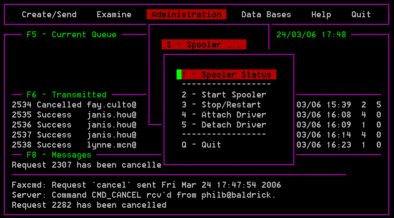
InterfaceThere are two management screens within realtime fax;
The interface adopted for both main screens and all pop up screens is ring menus with pull down options. Full on-line help is provided with the user manual supplied electronically to enable as many copies to be printed as required within the organization. |
|
 Numerous
management and operational efficiency studies have
affirmed the time and cost savings of electronic fax facilities. The
measurable gains of pressing a "FAX" function key as opposed to
pressing the "PRINT" key, moving from the workplace to the printer,
placing the printout in the fax machine and then manually sending, are
well documented with productivity and efficiency savings of up to 10
minutes per fax. Not only is the time to stand up from the desk and
move over to the printer, then the fax machine and then return to the
desk a waste of time, but rarely is this done without other external
interruptions and distractions.
Numerous
management and operational efficiency studies have
affirmed the time and cost savings of electronic fax facilities. The
measurable gains of pressing a "FAX" function key as opposed to
pressing the "PRINT" key, moving from the workplace to the printer,
placing the printout in the fax machine and then manually sending, are
well documented with productivity and efficiency savings of up to 10
minutes per fax. Not only is the time to stand up from the desk and
move over to the printer, then the fax machine and then return to the
desk a waste of time, but rarely is this done without other external
interruptions and distractions.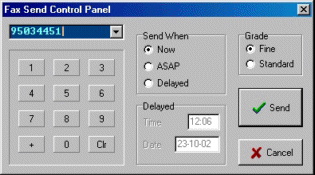 Windows Client
Interface - Submission Windows Client
Interface - SubmissionThe Windows client duplicates the fax submit screen in the management interface for submission of faxes from any application running on a PC. When a document is ready to be sent as a fax, the document is simply printed to the fax client, just like any other printer. This will cause the "Fax Send Control Panel" to be displayed prompting the user to enter a fax number. When all options displayed in the control panel are correct, click Send to submit the fax for transmission. The document will be scheduled to be sent at the time selected. When ever a fax document is submitted for transmission, the server will assign a Request Number to your fax. After successfully submitting a fax, a request summary will be presented showing the immediate status of the request. |
Class 2 Fax Modems
realtime fax supports
"Class 2" compliant modems. Unfortunately , Class 2 is not a certified
international standard, but simply a draft standard adopted by the
industry. As a consequence, no two manufacturers fax modems are
identical. In addition, the terminal interface (RS232) on Unix systems
will vary from machine to machine and vendor to vendor.
As a result, simply connecting a modem will not necessarily work in the first instance. What follows is a brief explanation of the concepts that need to be considered when connecting a modem to a computer. Most Class 2 fax modems use CTS/RTS for flow control. But several modems will use Xon/Xoff by default instead. On most modems where flow control can be selected, it will be controlled by the hayes-set command AT&K. Refer to your modem manual to determine its flow control method. If you are using a modem that only supports RTS/CTS flow control, it must be connected to a port on the computer which also allows RTS/CTS flow control. Not all computers support RTS/CTS flow control, but all Unix systems will support Xon/Xoff flow control. |
 Windows
Client
Interface - Management Windows
Client
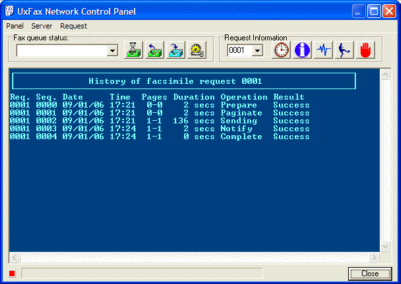
Interface - ManagementThe Windows client allows the user to manage their own requests and monitor the operation of the spooler. The "Network Control Panel" allows the user to examine the fax queues and the history and status of their requests in those queues. |